Tesla’s built-in navigation system makes it easy to save frequently visited places and navigate to precise locations. Whether you’re marking a favorite Supercharger, a hidden trailhead, a difficult-to-find driveway, or your office parking spot, using pins and Favorites can make every trip faster and more convenient.
Here’s everything Tesla owners need to know about dropping pins, saving favorite locations, and sending destinations from the Tesla mobile app.
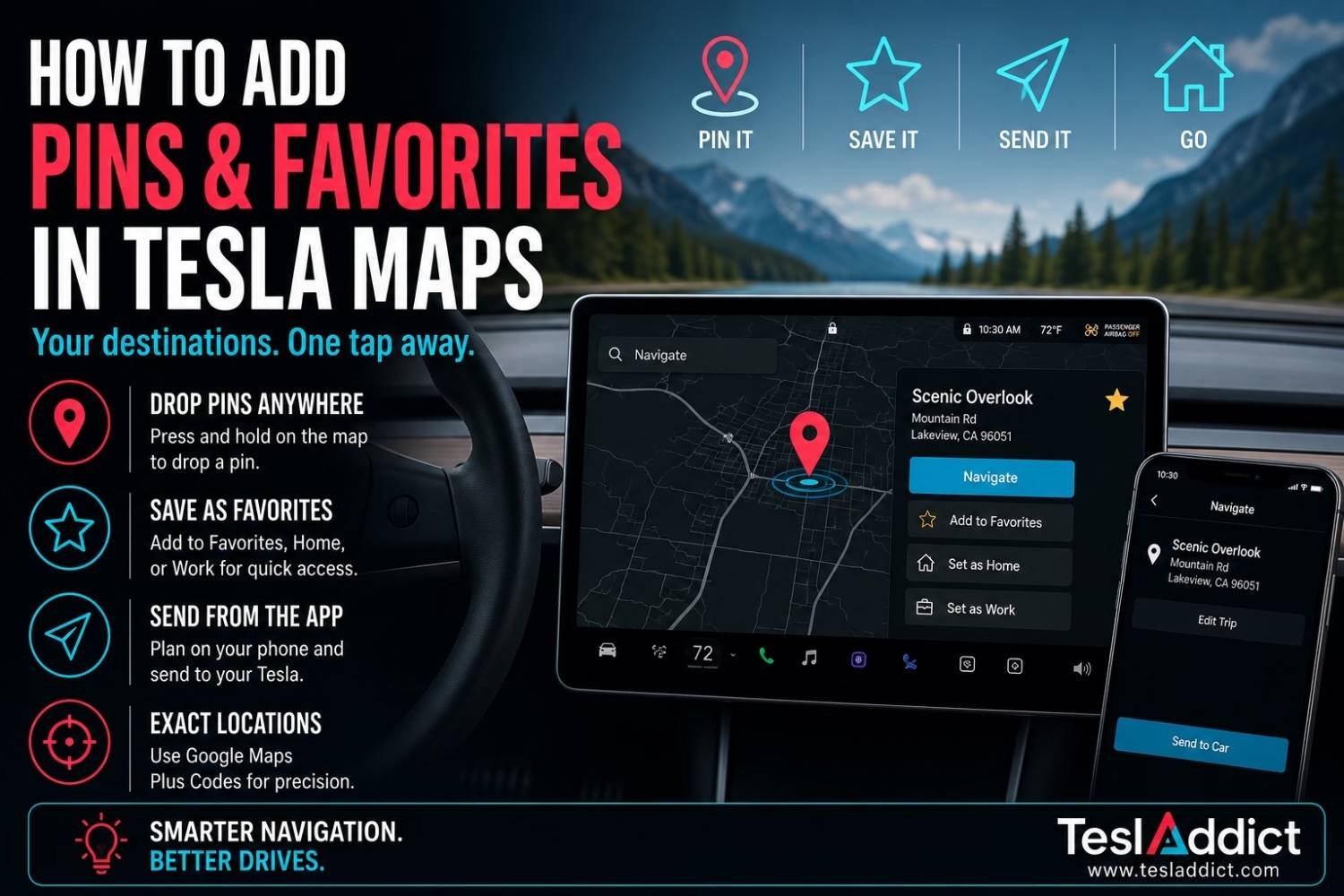
How to Drop a Pin on Your Tesla’s Map
The easiest way to save a precise location is directly from your Tesla’s touchscreen.
- Open the Navigation map.
- Press and hold the exact location you want to save.
- A location pin will appear along with the location details.
From there, you can:
- Start navigation immediately.
- Save the location as a Favorite.
- Set it as your Home location.
- Set it as your Work location.
You can also rename the location to something more memorable, such as “Cottage Charger,” “Favorite Coffee Stop,” or “Hidden Beach Parking.”
How to Save Favorite Locations
Any location can quickly become one of your Favorites.
Simply tap the Star icon when viewing the location details.
Once saved, your Favorites become available whenever you search for a destination, making navigation much quicker than entering the address every time.
You can also edit, reorder, or remove Favorites later from your saved locations list.
Send Destinations from the Tesla Mobile App
You don’t have to be inside your Tesla to plan a trip.
The Tesla app allows you to search for destinations and send them directly to your vehicle.
Simply:
- Open the Tesla app.
- Select Location or Navigate.
- Search for the destination.
- Add stops if needed.
- Tap Send to Car.
The destination will already be waiting in your Tesla the next time you get in.
This is especially useful before leaving work, planning road trips, or sharing destinations with family members.
Use Google Maps for More Precise Pin Locations
Sometimes an address isn’t accurate enough.
Driveways, trailheads, campground entrances, charging locations, construction sites, and parking lots often don’t have precise street addresses.
In these situations:
- Drop a pin in Google Maps or Apple Maps.
- Share the location directly to the Tesla app.
- Or copy the address and paste it into Tesla Navigation.
This gives much more accurate routing than relying on a nearby street address.
Use Google Plus Codes for Maximum Accuracy
Some locations don’t have an official address at all.
Google Plus Codes provide a simple solution by identifying an exact point on the map.
To use one:
- Drop a pin in Google Maps.
- Copy the Plus Code.
- Paste it into your Tesla Navigation or Tesla mobile app.
This is particularly helpful for:
- Remote cabins
- Campgrounds
- Boat launches
- Off-road trailheads
- Large parking lots
- Specific Supercharger stalls or meeting points
Practical Ways Tesla Owners Use Pins
Many owners use Favorites for much more than just Home and Work.
Popular examples include:
- Favorite Superchargers.
- Reliable Level 2 charging locations.
- Vacation homes.
- Friends and family.
- Office parking garages.
- Restaurants with EV charging.
- Scenic overlooks.
- Photography spots.
- Campgrounds.
- Trailheads.
Saving these locations eliminates the need to search every time you visit.
Tips for Better Navigation
To get the best experience:
- Give Favorites descriptive names.
- Use Plus Codes when addresses aren’t accurate.
- Plan longer trips in the Tesla app before leaving.
- Save frequently visited charging locations.
- Review your Favorites occasionally and remove locations you no longer use.
Frequently Asked Questions
Can I drop a pin anywhere on the Tesla map?
Yes. Simply press and hold almost any point on the map to create a pin and access navigation or save options.
Can I rename Favorite locations?
Yes. When saving a Favorite, you can assign a custom name that makes it easier to recognize later.
Can I send destinations from my phone to my Tesla?
Yes. The Tesla mobile app allows you to search for destinations and send them directly to your vehicle before you begin driving.
What are Google Plus Codes?
Plus Codes are precise location identifiers generated by Google Maps that can navigate to locations without traditional street addresses.
Related Reading
Latest Tesla Software Updates →
Bottom Line
Saving pins and favorite locations is one of the simplest ways to make Tesla navigation even smarter.
Whether you’re commuting every day, planning road trips, or navigating to hard-to-find destinations, using Favorites, shared locations, and Google Plus Codes can make your Tesla’s navigation more accurate, more convenient, and better suited to the way you actually drive.