
Sentry Mode and Dashcam can help document an incident, but neither guarantees a recording. Configure the storage, learn how to save clips and choose when parked monitoring is worth its energy use before you need the footage.
Choose where Sentry Mode runs
Tesla’s Sentry Mode instructions explain location exclusions for Home, Work and Favorites. Use them only where you are comfortable giving up parked monitoring, and verify the actual Sentry status after parking.
Energy use varies with vehicle, software, conditions and activity. Do not budget a fixed mile-per-hour drain. For an extended stay, plan enough charge for parked use and the onward drive.
Current supported software disables Sentry in Low Power Mode; older versions may use a fixed threshold. Check your car’s settings. A low-power cutoff does not guarantee enough energy to reach a charger, and the vehicle continues to use some energy afterward.
Check storage before upgrading it
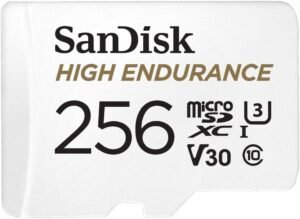
Use a compatible data-capable USB port and a correctly formatted drive. Tesla specifies at least 64 GB, sustained writing of 4 MB/s and USB 2.0 compatibility. Formatting erases the drive, so copy anything important first.
Check that your chosen storage and any USB card reader meet Tesla’s requirements. Test recording and playback in the vehicle before relying on a new setup.
A larger drive may help, but capacity is not an archive guarantee. Unsaved footage is overwritten and a full drive can prevent new saved clips. Review storage regularly and copy important recordings elsewhere.
Check a drive’s operating temperature as well as its capacity. For example, Samsung specifies 0°C to 60°C while operating for the T7 Shield; a lower non-operating temperature does not guarantee recording in a freezing cabin. Verify your formatted setup in the vehicle.
Learn how to save and review a clip
In Tesla’s Dashcam settings, Auto may save detected safety-critical events, but can miss them. Manual saving and On Honk offer other ways to retain recent footage where supported. Keep driving safely; use the horn only when appropriate, and review recordings after parking.
Test a saved clip in the Dashcam Viewer. Pause recording before removing the USB drive, then back up important files promptly. If your software encrypts recordings, follow its viewing and export instructions so the copy remains usable.
Keep the view clear
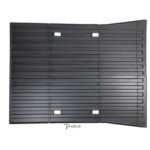
Check for dirty or obstructed cameras and clean them according to your manual. Vehicle-compatible mud flaps can help manage road spray toward the body, but do not guarantee clean cameras or clear footage.
Sentry does not alert your phone for every recorded movement or capture every impact. After finding damage, preserve the available clips and other evidence; our parking-damage guide explains the next steps.