
Tesla Service Mode gives you a closer look at your vehicle’s diagnostic and maintenance information. For curious owners, it can be useful for understanding alerts, checking visible system information and preparing for a service appointment.
But Service Mode is not a hidden performance menu or a substitute for professional repair. It is designed primarily for qualified technicians, and some functions can affect vehicle operation, safety systems or component calibration if used incorrectly.
The smartest approach is simple: use Service Mode to observe and document information—not to experiment with repair procedures.
What Is Tesla Service Mode?
Service Mode is a diagnostic and repair interface accessed through the vehicle touchscreen. Tesla describes it as a tool for internal and third-party technicians to service vehicles more efficiently.
Depending on your Tesla model, year and software version, Service Mode can provide additional detail about active alerts, vehicle systems, maintenance history and diagnostic functions. The available screens and options can change as Tesla updates its software.
Before entering, review Tesla’s current Service Mode documentation, particularly if your vehicle’s interface does not match a guide or video you have seen online.
What Tesla Service Mode Is Good For
For most owners, the real value is information. Service Mode can help you better understand what the vehicle is reporting before you contact Tesla Service or an independent EV technician.
- Viewing additional detail connected to an active alert.
- Confirming whether a warning reappears after a restart or drive.
- Checking visible vehicle and hardware information.
- Reviewing maintenance information when available.
- Taking clear photos of messages or alert codes before booking service.
That information can help you describe a problem accurately, avoid vague service requests and keep a useful record of recurring issues.
What Service Mode Is Not For
Service Mode should not be treated as a DIY repair playground. Some options are intended for trained technicians using specific tools, procedures and safety equipment.
| Reasonable Owner Use | Leave to a Qualified Technician |
|---|---|
| Reading an alert or warning description | High-voltage battery, cooling or electrical work |
| Documenting information for a service appointment | Brake, suspension or steering procedures |
| Reviewing visible maintenance history | Camera, sensor or driver-assistance calibration |
| Checking information without changing settings | Software reinstalls, resets or configuration changes |
If you do not understand exactly what a function does, do not run it. A warning screen, maintenance routine or diagnostic action may have consequences that are not obvious from its label.
How to Enter Tesla Service Mode
The exact wording can vary by vehicle and software version, but the common touchscreen method is straightforward:
- Park the vehicle safely.
- Open Controls, then Software.
- Press and hold the vehicle model name shown on the screen.
- Enter service when prompted.
- Read the warning carefully before proceeding.
Service Mode should only be used while parked. Your vehicle may limit speed or disable certain features while the mode is active, so exit before normal driving.
How to Exit Service Mode
Use the Exit Service Mode control displayed on the touchscreen. If the interface does not behave as expected, do not attempt workarounds or resets. Follow Tesla’s current documentation or contact Tesla Service for guidance.
Start With Alerts, Not Actions
If you entered Service Mode because you saw a warning, your first goal is to understand the message—not to clear it.
- Take a photo of the alert and any associated detail.
- Note when it appeared, whether it returns and any changes in vehicle behaviour.
- Record weather, charging, driving or recent-service circumstances that may be relevant.
- Use that information when booking service.
Clearing, resetting or recalibrating something before diagnosis can make it harder to identify an intermittent issue.
Do Not Guess at Camera or Driver-Assistance Calibration
Camera and driver-assistance systems are safety-critical. If Autopilot or Full Self-Driving behaviour seems unusual, do not assume calibration is the answer.
First check for visible obstructions, poor weather, dirty cameras or warning messages. If the concern continues, document it and arrange appropriate service. Do not use Service Mode to change settings merely because an online post suggests it.
Battery Information Requires Context
Battery-related information can be useful, but it is easy to overinterpret. Estimated range changes with weather, driving style, terrain, tire condition and climate use; it is not a standalone battery-health diagnosis.
For a more practical explanation of the signals that matter, read How to Check Used EV Battery Health Before Buying.
Service Mode Does Not Replace Routine Maintenance
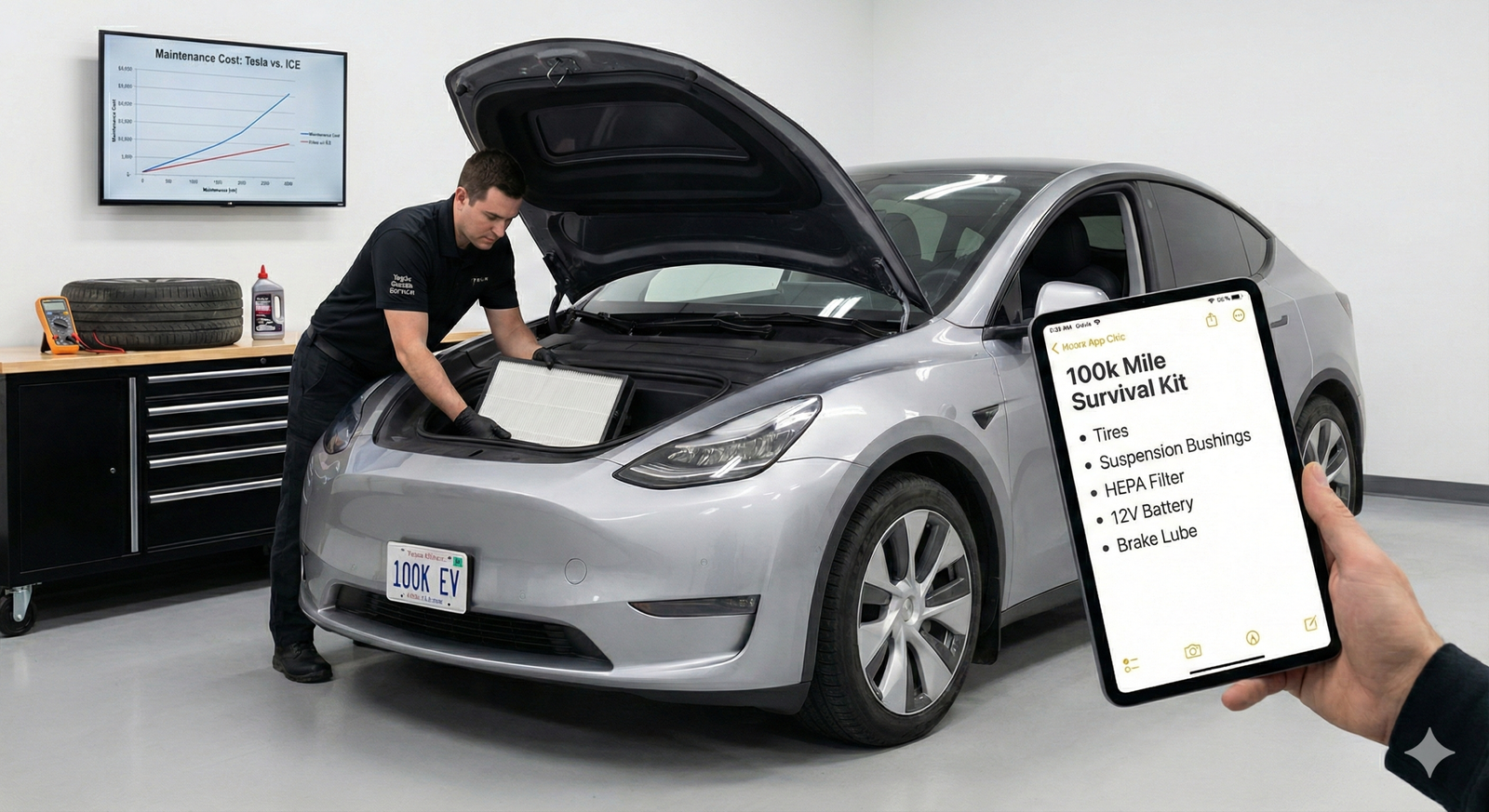
Teslas need less scheduled maintenance than many gas vehicles, but they still need attention. Tires, cabin air filters, wiper blades, brake fluid, suspension components and seasonal checks remain important.
For simple owner-appropriate work, use Tesla’s official Do It Yourself Guides for your specific vehicle and region.
When to Book Tesla Service Instead
Use the Tesla app or a qualified EV technician when you see a persistent warning, notice a change in braking or steering, experience unusual noises, have charging problems, or suspect a safety-related issue.
Service Mode can make you a better-informed owner. It should not make you responsible for diagnosing or repairing systems that require specialized training.
Common Tesla Service Mode Questions
Does entering Service Mode void my warranty?
Simply viewing information is different from altering settings or running procedures. However, damage caused by misuse may not be covered. Treat the mode as read-only unless you are following an official procedure you fully understand.
Can I drive in Service Mode?
Do not use Service Mode as a normal driving mode. Vehicle functions and safety features may be limited while it is active.
Can Service Mode tell me whether my battery is healthy?
It can provide useful information, but a single screen or range estimate does not tell the whole story. Battery condition should be considered alongside driving history, charging habits, temperature and the vehicle’s remaining warranty coverage.
Should I clear an alert after reading it?
No. If an alert is persistent or concerning, photograph it and arrange service. Clearing or resetting a system can complicate diagnosis.
Bottom Line
Tesla Service Mode is most valuable when it helps you ask better questions. Use it to observe, document and understand what your vehicle is telling you. Leave repairs, calibration and unfamiliar procedures to qualified professionals.
Related Reading
- Home Charging vs. Supercharging: What Actually Protects Your Tesla Battery Long Term?
- Tesla Gear Worth Buying
- The Latest Tesla and EV Ownership News
Knowing how to read your Tesla is useful. Knowing when not to touch a setting is even more valuable.