The Dynamic Wake-Up: Automating Tesla Pre-Conditioning with Your iPhone

Phase 1: Set the Trigger

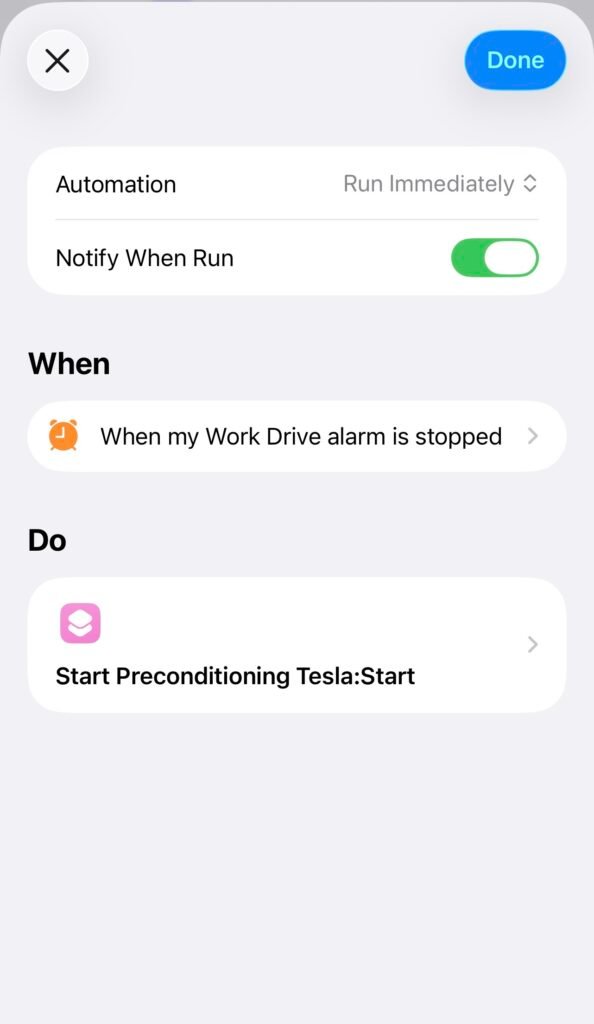
We need to tell your iPhone to listen for your morning alarm.

1. Open the Shortcuts app on your iPhone.

2. Tap the Automation tab at the bottom.

3. Tap the + icon to create a new Personal Automation.

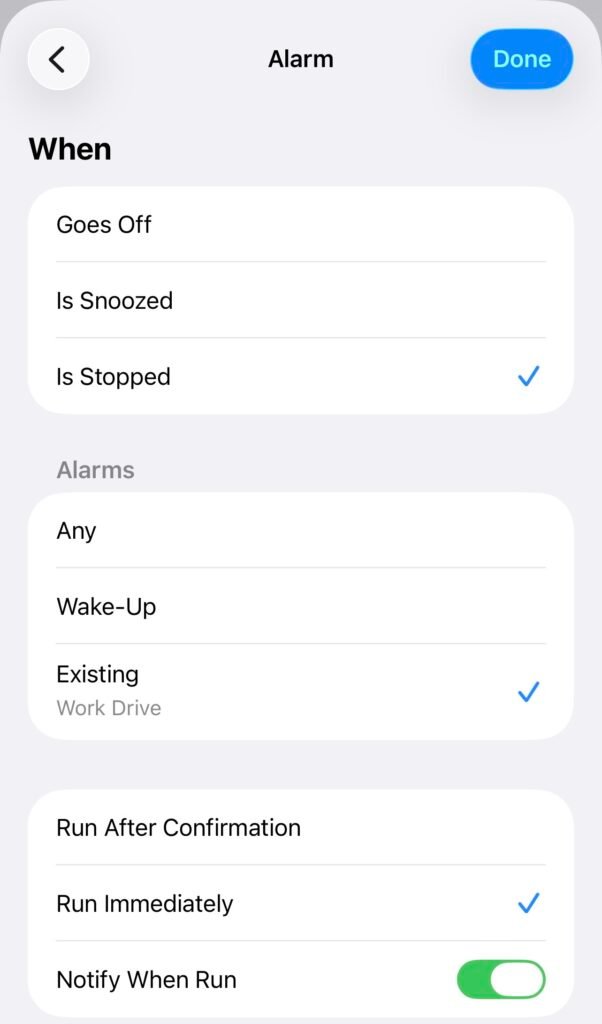
4. Select Alarm.

5. Select Is Stopped (This ensures the car only wakes up when you actually turn the alarm off).

6. Select Existing and choose your specific Wake-Up alarm. 

7. Select Run Immediately so the phone executes the command instantly. 

8. Tap Next.

Phase 2: Set the Action

Now we tell the iPhone to wake up the Tesla.

1. Tap New Blank Automation.

2. Tap Add Action and type “Tesla”.

3. Tap on the Tesla App Icon.

4. Select Precondition Vehicle. 

5. Ensure the action is set to Start and your specific vehicle is selected.

6. Tap Done.