
Save a favorite destination or drop a precise pin before you leave, and you can spend less time re-entering addresses. These steps help with regular stops, a campground entrance or a difficult driveway. Set up the destination while parked and check that the route reaches the correct access point.
Drop a pin and save a Favorite
- Press and hold the desired point on the Tesla map.
- Open the pin’s information panel.
- To save it, tap the star, enter a useful name and choose Add to Favorites.
- Later, use the navigation search bar’s Favorites list to find it.
The pin panel can also offer navigation and Home or Work options. Tesla’s Maps and Navigation manual documents the available controls; check your vehicle’s version if the screen differs.
Keep Home, Work and Favorites useful
Use names such as “Cottage entrance” or “Office visitor parking” that distinguish the access point. Where supported, touch and hold a saved entry to remove it, or drag Favorite entries to reorder them. Review saved locations when an entrance or charging arrangement changes.
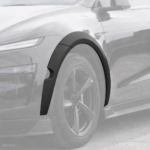
If you use a phone during trip setup, the Highland/Juniper phone mount is an optional cabin accessory. Set it while parked and preserve a clear view; a mount does not add map features to the vehicle.
Delete personal destinations before transferring the car or letting someone else use it if you do not want to share those locations. Check Sentry location exclusions separately: saving a place and choosing to monitor it are different decisions.
Send a destination from your phone
In the Tesla app, open Locations → Navigate, enter the destination, edit stops if available, then choose Send to Car. You can also use a supported mapping app’s Share function to send a location to the Tesla app.
Before moving, confirm the destination and route on the vehicle’s screen. A successful share does not establish that a remote road is open or that the final approach is suitable for your car.
Check the entrance, not just the address
A business address may point to the wrong side of a large site. Compare the pin with the operator’s entrance instructions, particularly for campsites, parking garages and trailheads. Follow signs and access restrictions even if navigation suggests another way.
Direct Tesla support for pasted Google Plus Codes was not verified for this guide. If a host supplies one, resolve it in the mapping service that supports it, then share and inspect the resulting destination. Do not assume a code routes to a usable vehicle entrance.
For more trip preparation, explore TeslAddict EV Travel, owner tips and software updates.